Surveys & Insights
Use Surveys to collect focused feedback from your customers and analyze what matters most across your business.
What are Surveys?
In Trustify, surveys let you define up to 6 items (for example Customer Service, Pricing, or Location) that customers rate from 1 to 5 stars.
- Use different surveys for different business areas.
- Assign one survey to multiple profile pages.
- Display survey context with reviews (if enabled in profile page settings).
Open Surveys
In the Trustify App, go to Apps → Surveys.
On this page you can:
- Search and filter surveys.
- Create a new survey.
- See status, language, item count, and response count.
- Open a survey to manage details and results.
Create a survey
Click Create Survey and complete the two setup steps.
Step 1 - General Settings
- Title: Internal and display name of the survey.
- Profile Pages: Select one or more profile pages where this survey can be used.
- Language: Choose one or more survey languages.
Click Next.
Step 2 - Survey Items
- Add the questions/items customers should rate.
- You can add up to 6 items.
- Reorder items if needed and remove items you do not want.
Click Create to publish the survey.
Manage a survey and view insights
From Apps → Surveys, open a survey to access its detail view.
In the survey detail view you can see:
- Responses: Total number of submitted responses.
- Average rating: Overall rating for the survey.
- Response trend: Chart of survey responses over time.
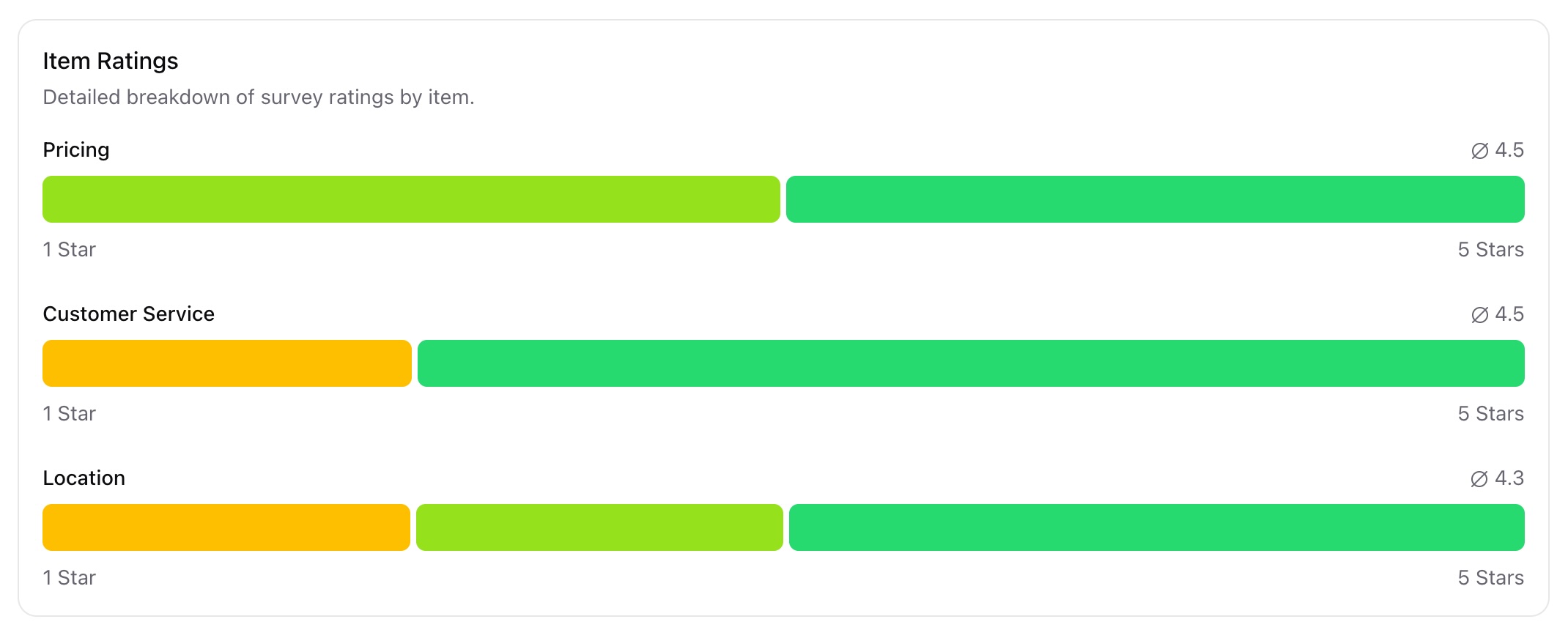
- Item ratings: Rating breakdown per survey item.
- Linked profile pages: Where the survey is currently used.
You can also close a survey from the Actions panel when it is no longer needed.
Share survey links
In the survey detail view, click Share Survey.
You get a general survey link format and a custom link generator:
- General Survey Link: Uses a placeholder profile slug.
- Custom Survey Link: Select a profile page and language to generate a ready-to-use link.
https://in.trustify.ch/[profile-slug]/rate?s=[survey-id]
https://in.trustify.ch/[language]/[profile-slug]/rate?s=[survey-id]
Use these links in email campaigns, QR codes, or customer follow-ups when you want feedback for a specific survey.