Profile pages (setup & management)
This guide explains how to create and manage profile pages in the Trustify App.
What is a profile page?
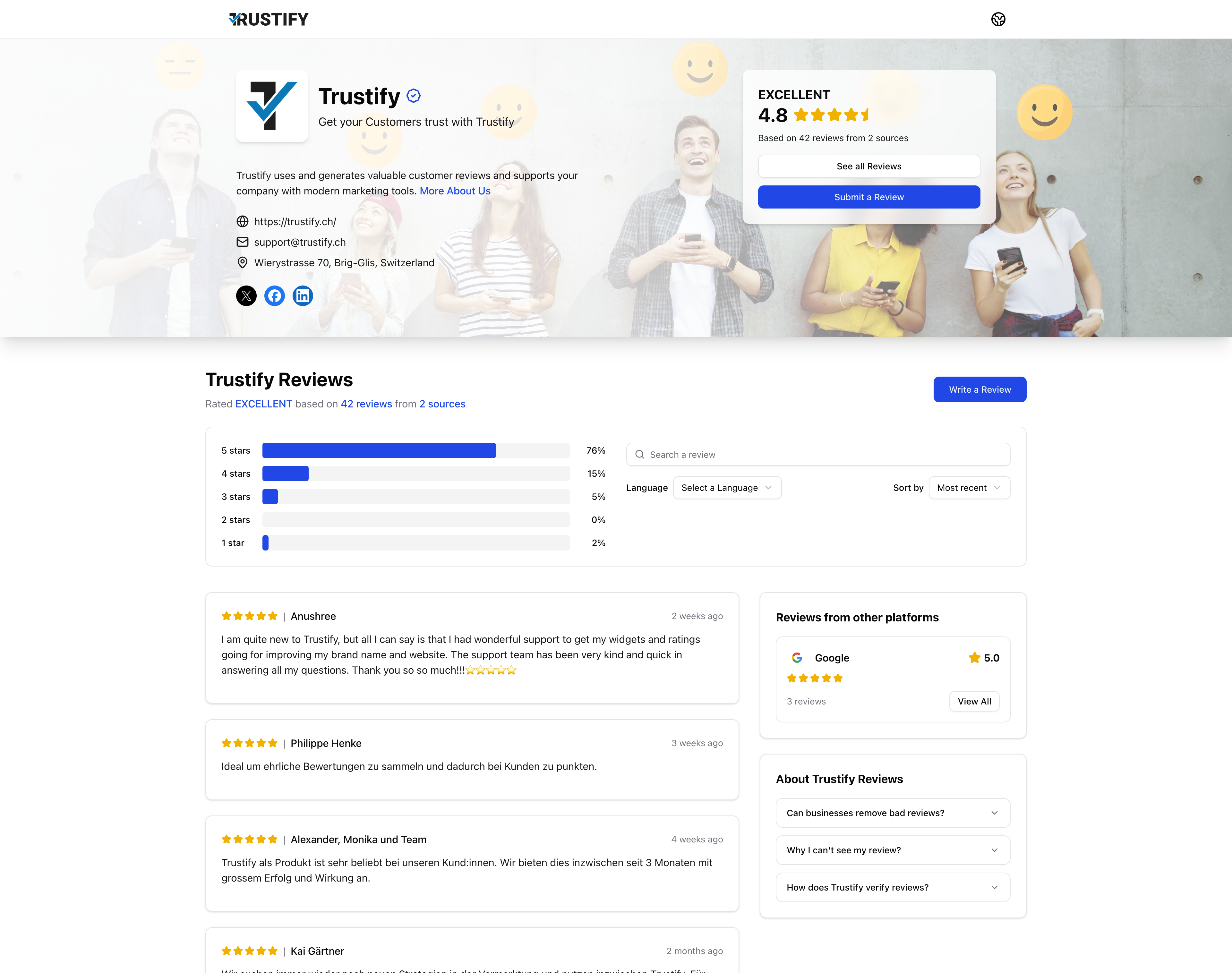
A profile page is your public Trustify page where customers can see your reviews from Trustify and all connected platforms in one place, giving them a clear view of your reputation.
See the live example: https://in.trustify.ch/trustify
On a profile page, visitors can see all key trust elements in one place:
- Your current Trustify Score and rating label.
- The total number of reviews and how many sources are included.
- Native Trustify reviews, also with media.
- Rating distribution (for example 5-star to 1-star split).
- Business details such as website, contact options, and social links.
- Direct business actions like Write an Email or Visit Website.
Advantages of a profile page
- Build trust faster: Visitors get clear social proof immediately.
- Centralize reputation: Reviews from Trustify and external sources are combined on one page.
- Increase conversion potential: Strong ratings and visible review activity reduce hesitation.
- Improve transparency: Public review context and verification guidance increase credibility.
- Strengthen brand presence: Your profile page becomes a branded trust destination you can share everywhere.
- Boost SEO: Search engines like Google favour review-rich content pages. A well-maintained profile page with fresh, authentic reviews is exactly the kind of user-generated content that improves your organic visibility and can appear directly in search results.
- Improve AEO (Answer Engine Optimization): AI-powered search engines and assistants (like Google AI Overviews or ChatGPT) increasingly draw from structured, trustworthy review sources. Your profile page strengthens the signals these systems use to surface your business in AI-generated answers.
- Earn backlinks: As your profile page becomes a credible public source of reputation, other websites, directories, and partners are more likely to link to it, generating valuable backlinks that further improve your search authority.
Create profile pages
In the Trustify App, go to Core → Profile Pages.
- If this is your first profile, Trustify opens a setup guide automatically.
- If you already have profiles, click Create New to add another one.
Setup Steps
The setup guide walks you through three steps:
Step 1 — Basic Details
- Name: Used as the title on your profile page. Can be freely chosen.
- Slug: The unique URL at which your profile will be accessible. Only numbers, letters, and hyphens are allowed. Can be changed later.
- Type: Used for various optimizations and is not displayed on the profile page. Select the type that most closely matches your business.
- Default Language: Your profile primarily displays in this language. If a visitor's language is unknown or no translation exists, this language is used as fallback.
Step 2 — Appearance
- Headline: A short, catchy phrase that describes your business or service.
- Description: A brief overview of your business or service (up to 500 characters).
- Logo: Your company logo. Should be a square image, minimum 200×200 pixels.
- Cover: Displayed at the top of your profile page. Should be a rectangular image, minimum 1200×400 pixels.
Step 3 — Contact Details
- Address: Physical address displayed on your profile page. Using a private address is not recommended.
- Website: Your website URL, displayed on the profile page.
- Email: Your contact email, displayed on the profile page.
- Phone: Your phone number, displayed on the profile page.
Click Finish to create your profile page.
Manage a profile page
Open Core → Profile Pages, then select the profile to edit.
Use the Profile completion guide to fill out all important sections. It helps you publish a complete, high-trust profile faster.
Add external review sources
In your profile settings, open External Sources and connect platforms like Google, TripAdvisor, or Booking.
- Depending on platform, search the business or add a URL.
- Trustify imports and refreshes external data regularly.
- External ratings contribute to the profile’s overall Trustify Score.
For the full process, see External review platforms.
Profile translations and sharing
Trustify supports multiple languages. Your profile primarily displays in the default language you set during setup. If a visitor's language is unknown or no translation exists, the default language is used as fallback. To add or manage translated profile content, go to Core → Profile Pages, select a profile and navigate to the Content tab.
To share your profile, click the Share button at the top right of a profile. You will find four ready-to-copy links:
Without language - Trustify automatically detects the visitor's language:
https://in.trustify.ch/[slug]
https://in.trustify.ch/[slug]/rate
With language - the profile opens in a specific language:
https://in.trustify.ch/[language]/[slug]
https://in.trustify.ch/[language]/[slug]/rate
The /rate links take visitors directly to the review form. Use language-neutral links by default, and language-specific links when targeting a specific audience, for example in a German email campaign or an English ad.
Track profile performance
Inside each profile, regularly review the stats:
- Trustify reviews: Native reviews collected via Trustify.
- External reviews: Imported ratings and reviews from connected sources.
- Trustify Score: Consolidated score shown to visitors.
These three indicators show both your current reputation and the impact of optimization work.
For scoring details, see Trustify review score.
Standard & Collection profiles
Trustify supports two profile types:
- Standard (Child) profile: Normal business profile.
- Collection (Parent) profile: Works also as a standard profile but will also display all the linked child profiles and aggregates the trustify scores.
When to use a Collection profile
Use a Collection profile when you want one consolidated profile page for multiple entities. For example you have several profile pages for different locations or stores of your business, but the brand and website for all of them is the same.
Parent and Child relationship
- The Collection profile is the parent page.
- Each linked Standard profile acts as a child profile.
- Child profiles keep their own data, while the Collection profile bundles everything for visitors.
To assign a child profile to a Collection profile:
- Open the Standard profile.
- Go to Collection.
- Set Parent Profile.
You do not need to define a profile as Collection profile in advance. Any profile can be assigned to any Standard profile at any time.
Recommended setup order
- Create a Standard profile page.
- Complete all fields via the profile completion guide.
- Connect external sources.
- Add translations.
- Monitor Trustify reviews, external reviews, and Trustify Score.
- If needed, create a Collection profile and assign child profiles.